
Overwhelmed? We're here to help.

How to Choose a Mechanical Gaming Keyboard in 2026

Choosing a Mechanical Gaming Keyboard in 2026 means balancing feel, speed, comfort, and price—not chasing the longest feature list. A board that feels crisp during a quick match may become tiring during a long work session. Start with the basics: switch type, layout, keycap shape, and case size. Linear switches move smoothly, while tactile switches offer a noticeable bump; neither is automatically better. If possible, try both before buying. Feel the difference. Also check whether the keyboard includes a number pad, dedicated media controls, or enough desk space for broad mouse movements. Small details matter.

Performance claims deserve a closer look. High polling rates and adjustable actuation can help some players, but they cannot replace steady practice or comfortable positioning. Check independent testing, warranty terms, and software support rather than relying on a product page alone. Hot-swappable switches can make repairs or experiments easier, though compatibility varies by socket and switch. Wireless models add flexibility, but battery life and connection options should match your routine. No choice is perfect. I would also leave room for changing preferences: the switch you love in a five-minute demo may feel different after an evening of play. This guide explains how to compare the details that shape everyday use, so you can choose a keyboard that fits your games, hands, and budget—not just a trend.
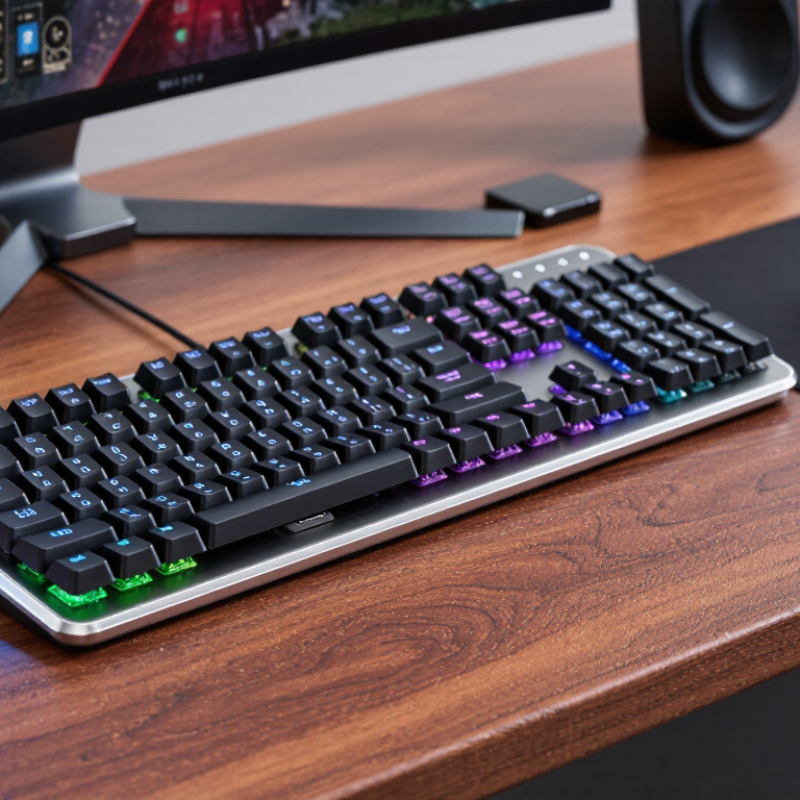
How to Choose a Mechanical Gaming Keyboard in 2026

Define Your Games, Budget, and Keyboard Layout Before Comparing Models

Before comparing keyboards, name the games you actually play. Fast shooters may benefit from a compact layout and switches that feel light under quick taps. Strategy games often make a number pad useful. Long role-playing sessions can put comfort ahead of flashy lighting. Be specific: picture your hands during a late match, not an idealized setup. There is no perfect switch for every player.

Set a firm budget, including any wrist rest or replacement keycaps you may want. A higher price does not guarantee a better fit. Decide whether you prefer a quiet, soft press or a more pronounced click, and check whether the keyboard’s noise suits your room. If possible, try similar switches in person. Online descriptions can make small differences sound enormous. They are not always.

Measure your desk before choosing a layout. A full-size board preserves the number pad, while a tenkeyless model frees space for wider mouse movement. Smaller layouts save even more room, but some function keys may require shortcuts. That trade can feel clever at first, then annoying during everyday use. Check which keys you rely on. Compare models only after games, spending limit, and desk space are clear; otherwise, attractive features can distract from what your hands need.

Compare Switch Feel and Actuation with CHERRY MX2A’s 100-Million-Press Rating

When choosing a mechanical gaming keyboard, compare how each switch feels and when it registers a press. Linear switches move smoothly; tactile switches bump beneath your finger, while clicky ones add audible feedback. A typical switch actuates near 2 mm and travels about 4 mm, but specifications vary. Test the same key repeatedly, then try a quick double-tap. Small differences matter.

A published switch specification rates one switch family for up to 100 million presses. Treat that figure as a durability rating, not a promise that every key will last equally long. Dust, heavy impacts, and uneven typing can affect real-world performance. The Entertainment Software Association’s 2024 Essential Facts report says 61% of Americans play video games, a reminder that keyboards serve many kinds of players and sessions. Comfort matters over time.

Pay attention to actuation force, too: a light switch may feel quick, but can trigger during an accidental brush. A heavier switch may reduce stray inputs, yet tire your fingers during long matches. I still misjudge this sometimes. Try a few switches in person, resting your hand naturally and testing both slow presses and rapid repeats. Listen closely. A rating tells you about endurance; it cannot tell you whether the key feels right.

Check Polling Rate: USB Full-Speed Supports 1 ms Interrupt Intervals

How to Choose a Mechanical Gaming Keyboard in 2026
Check Polling Rate: USB Full-Speed Supports 1 ms Interrupt Intervals

A 1,000 Hz polling rate sounds decisive. It means the keyboard can communicate with the computer at intervals as short as one millisecond, not that every keystroke appears onscreen within one millisecond. The USB-IF USB 2.0 Specification defines full-speed USB frames as 1 ms and allows full-speed interrupt endpoints to request intervals from 1 to 255 frames. Check the technical specification, not just a prominent number on a product page. That distinction matters.

The keyboard’s internal scan rate, firmware, and debounce settings also affect input delay. So do the computer’s operating system and the game itself. Independent keyboard test reports, such as RTINGS’ latency testing, help compare measured performance across models; check the test method and connection type before trusting a result. Wired USB performance may differ from wireless performance. Look for a reported interval of 1 ms, then compare real latency measurements under consistent conditions. A tiny number isn’t the whole story. I’d also test rapid repeated taps in the games you actually play; laboratory figures are useful, but not perfect.

Verify Anti-Ghosting and Rollover Against USB HID’s 6-Key Boot Protocol

How to Choose a Mechanical Gaming Keyboard in 2026

“Anti-ghosting” and “N-key rollover” are not interchangeable promises. Anti-ghosting reduces phantom inputs when nearby keys are pressed together; rollover describes how many simultaneous key presses the keyboard can register. USB-IF’s HID Specification 1.11 defines an eight-byte boot-keyboard report: one modifier byte, one reserved byte, and six keycode slots. That means the standard boot protocol reports up to six non-modifier keys at once, plus modifier keys such as Shift or Ctrl. (USB-IF, HID Specification 1.11, Boot Interface.) Six is a protocol limit, not proof that a keyboard handles every gaming combination well.

Test the actual keys you use. Connect by USB, open a keyboard event tester, and hold W, A, S, D, Space, and R together. Check that every key appears, then add Shift and Ctrl. No missing inputs? Good. Also try neighboring keys, where ghosting may show up. A web tester is useful, but it can’t fully reproduce every game, connection mode, or boot environment. For BIOS or recovery use, confirm the keyboard supports boot-protocol operation; a high rollover claim alone doesn’t guarantee it. Read the technical specifications, too. Marketing wording can be vague, and I would not treat “full rollover” as a substitute for a real test.

Evaluate Keycaps, Connectivity, and Ergonomics Using ISO 9241-410 as a Guide

Use ISO 9241-410 as a practical lens, not a pass-or-fail label. It offers ergonomic criteria for physical input devices, but it cannot tell you which keyboard will suit your hands. Start with the keycaps. Their shape, spacing, and surface affect how confidently your fingers land after hours of play. Check whether the legends are easy to read under your usual lighting, and whether the texture feels slippery or distracting. Small details matter. A tall keycap may feel satisfying during a short test, then tiring during a long session. I would not assume that popular means comfortable; that is an easy mistake.

Connectivity deserves a real-world check. A wired connection avoids charging and pairing, while wireless operation can reduce desk clutter. Test the cable route, receiver placement, and wake-up behavior before deciding. Then consider ergonomics: keep your wrists relatively straight, your shoulders relaxed, and the keyboard close enough that you do not reach forward. Adjustable feet can help, but a steep angle may bend your wrists more than expected. Try your normal desk and chair, not just a shop counter. If possible, type and play for twenty minutes, then notice pressure, missed keys, or numbness. Comfort is personal, and one test may not reveal everything.

How to Choose a Mechanical Gaming Keyboard in 2026 – Evaluate Keycaps, Connectivity, and Ergonomics Using ISO 9241-410 as a Guide

Use ISO 9241-410 as a framework for evaluating physical input-device design, comfort, and usability. The practical targets below are comparison guidance, not a claim of ISO certification or a substitute for trying a keyboard.

Evaluation dimension What to check Practical selection guidance Why it matters
Keycap material Compare ABS and PBT keycaps; check the product specifications rather than relying on appearance alone. PBT is generally more resistant to developing a shiny surface through wear. ABS is also common and can provide a smooth feel, but its surface may become glossy with use. Material and finish affect feel, wear, and how clearly legends remain visible.
Keycap legends Check whether legends are printed, dye-sublimated, or double-shot, and whether lighting shines through them if that is important to you. Choose legends with adequate contrast for your room lighting. Double-shot construction forms legends from a second plastic, while dye sublimation embeds the legend into the keycap surface. Readable legends support accurate key identification; construction can affect durability and backlight visibility.
Keycap profile and layout Try the row shape, key spacing, layout, and any non-standard key sizes before purchase. A familiar layout and consistent key spacing make it easier to move between keys. Compact layouts may save desk space but can require function layers or omit dedicated navigation keys. ISO 9241-410 encourages attention to usability and interaction; the best layout depends on task demands and user preference.
Switch force and travel Look up the switch’s actuation force and travel specifications, then test the feel if possible. There is no universally ideal force or travel. Select a feel that allows reliable presses without excessive effort or frequent accidental activation. Key resistance and feedback influence effort, control, and comfort during extended use.
Wired connectivity Check connector type, cable length, compatibility, and whether the cable is detachable. USB wired connection avoids keyboard battery charging and is a straightforward choice for a fixed desk setup. Confirm the connector works with your computer or adapter. A dependable connection and practical cable routing reduce setup friction and desk clutter.
Wireless connectivity Distinguish Bluetooth from a dedicated 2.4 GHz USB receiver; check battery life conditions, charging method, and device compatibility. Bluetooth can be useful for switching among compatible devices. A 2.4 GHz receiver is often chosen for gaming; actual latency and battery life vary by model and settings, so consult independent tests and specifications. Wireless convenience involves trade-offs in charging, compatibility, and responsiveness.
Polling rate and input claims Check the stated polling rate and whether the figure applies to wired, wireless, or both modes. A higher stated polling rate means more frequent reports to the host, but does not by itself establish total input latency or improve every user’s experience. Look for independent measurement methods. Clear, comparable evidence is more useful than a headline number alone.
Keyboard height and wrist posture Assess front-edge height, keycap height, tilt options, and how your wrists and forearms align while typing. Aim for a relaxed posture with wrists as straight as practical. A wrist rest may support the palms between typing periods, but avoid pressing the wrists against it while actively typing. Physical input-device evaluation includes posture and fit; comfort varies with the user, desk, and chair.
Tilt and adjustability Check feet, available angles, stability, and whether the keyboard stays in place during use. Choose an angle that feels comfortable rather than assuming a steeper tilt is better. Some users prefer a flatter keyboard to help keep wrists neutral. Adjustability helps accommodate different users and workstation setups.
Keyboard size and desk fit Compare the keyboard’s physical width with available desk space and mouse movement needs. Full-size layouts include a number pad; tenkeyless layouts omit it; smaller layouts save more space but may relocate or layer keys. Measure the desk before buying. A suitable footprint can leave room for comfortable mouse placement and reduce reaching.
Noise and surroundings Listen to the keyboard in a similar room and consider switch sound, case resonance, and typing technique. Mechanical keyboards can be audible, and sound varies with switches, keycaps, case construction, and use. If noise matters, test before purchase or select a quieter design. Environmental fit is part of practical usability, especially in shared spaces.
Final fit check Test typing, gaming controls, shortcuts, lighting visibility, and connection stability with your intended setup. Prioritize a comfortable posture, reliable key recognition, suitable layout, and verified device compatibility over any single specification. ISO 9241-410 is a useful evaluation guide; individual testing helps determine whether a device fits the intended user and task.
Have questions? We'll help answer all of them. CONTACT SUPPORT
CHAT WITH SALES